Acuity Scheduling guide
Acuity Feedback Forms: How to Collect Client Feedback by SMS or Email
Learn how to collect post-appointment feedback in Acuity Scheduling with follow-up emails, external forms, and Aculio SMS or email automation.
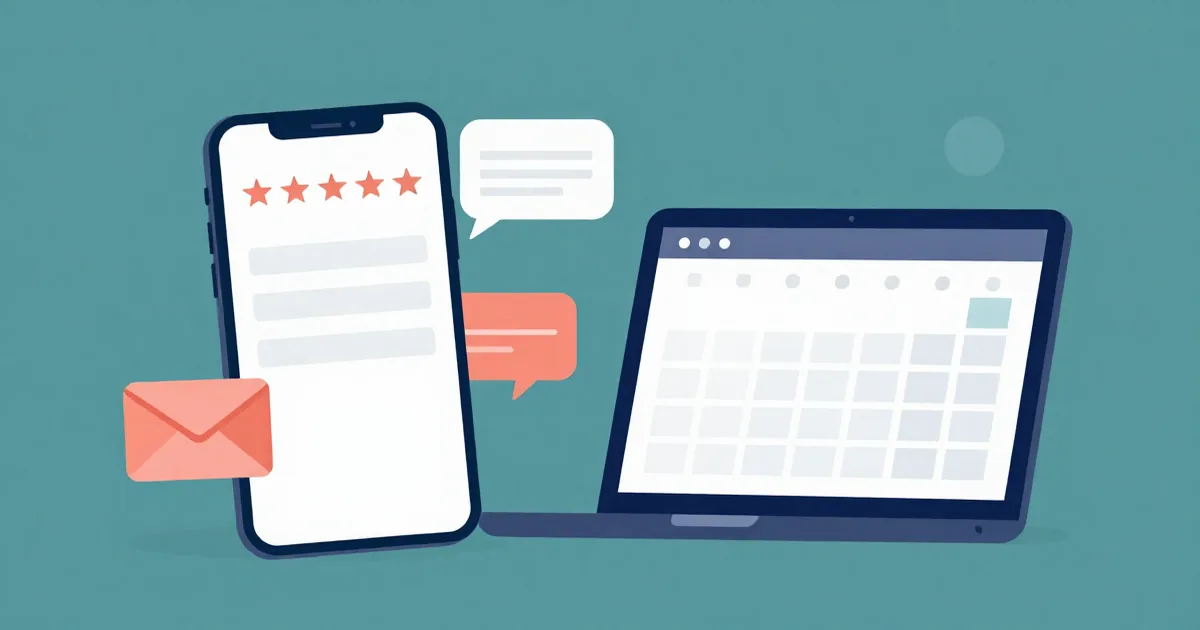
Acuity Scheduling does not include a native survey builder, but you can collect client feedback by linking an external form from an automated follow-up email. If you want feedback requests by SMS or need a branded form with reply-aware follow-up, Aculio adds customizable feedback forms and delivery by SMS or email on top of your Acuity workflow.
Does Acuity Scheduling Have a Feedback Form?
Acuity Scheduling lets you send automated follow-up emails after an appointment, but it does not create the survey itself. The native workaround is to build a form in a separate service, such as Google Forms or Wufoo, then add its link to an Acuity follow-up email.
This setup works well when email is enough and you only need a simple questionnaire. It becomes less convenient when you need to collect responses quickly after a class, send the request by text, or change the questions and presentation for different appointment types.
Acuity follow-ups can also be used to thank a client, offer a discount, or request a public review. The important distinction is that Acuity sends the message and links to the form, while the survey logic and response storage live in the external tool.
Native Acuity Follow-Ups vs. Acuity with Aculio
| Capability | Native Acuity follow-up | Acuity + Aculio |
|---|---|---|
| Post-appointment message | Automated email | Automated SMS or email |
| Feedback form builder | Use an external form service | Customizable form inside the workflow |
| Timing | Configurable follow-up interval | Configured around the appointment and chosen channel |
| Channel choice | Email only | SMS or email |
| Response workflow | Responses stay in the form service | Feedback request and delivery activity stay visible in Aculio |
How to Set Up an Acuity Feedback Form with Follow-Up Email
The simplest Acuity feedback workflow uses an external form and a follow-up email. You can build it without changing your booking page.
- Create the form. Use Google Forms, Wufoo, or another survey tool. Ask only questions that you will use, such as satisfaction, what went well, what could improve, and whether the client would recommend your business.
- Copy the response link. Test the form on a phone before adding it to an automated message. Remove questions that make the form slow to complete on a small screen.
- Open Client Emails in Acuity. Go to the Follow-ups area and add a follow-up email for the relevant appointment type.
- Set the timing. Send the request while the experience is still fresh, usually shortly after the appointment ends. Acuity supports follow-up intervals from about 14 minutes to 365 days.
- Write one clear call to action. Thank the client, explain why the feedback matters, and link directly to the form. Avoid combining the survey request with several unrelated offers.
- Run a complete test. Book a test appointment, let the appointment end, and confirm that the message, form link, mobile layout, and confirmation page all work.
Acuity's follow-up settings can send only to clients who do not have another upcoming appointment. That option can be useful for reactivation campaigns, but it may not be appropriate when every completed appointment should produce feedback.
What Questions Should an Acuity Feedback Form Ask?
A good post-appointment form is short enough to finish in one or two minutes. The right questions depend on the service, but this structure works for studios, clinics, instructors, and other appointment-based businesses:
- Overall rating: How would you rate today’s appointment from 1 to 5?
- Outcome: Did the appointment meet your expectations?
- Open feedback: What was the most useful part of your visit?
- Improvement: What could we improve next time?
- Follow-up permission: May we contact you about your feedback?
- Review invitation: Would you like to leave a public review?
Keep private service feedback separate from a public review request. A client may want to tell you about a problem without publishing it online. A two-stage workflow lets you respond to negative feedback first and invite satisfied clients to a review platform separately.
When SMS Is Better Than Email for Feedback Requests
Email is a sensible default for a longer survey or a detailed receipt-style follow-up. SMS is often better when the form takes less than two minutes and the client is likely to complete it from a phone.
SMS feedback requests are particularly useful for group classes, workshops, fitness sessions, and appointments where the client leaves immediately after the service. A short message with one link creates less friction than asking the client to find an email later.
Use SMS only when the client has given the required permission for messages. Identify the business, explain what the link is for, and provide a clear opt-out path. Aculio can deliver the feedback request by SMS or email and lets you customize the form, message, colors, and prompt structure for the workflow.
How Aculio Automates Acuity Feedback Requests
Aculio keeps Acuity as the booking system and adds a post-appointment feedback layer. You can choose the appointment types that should trigger a request, select SMS or email, and customize the form without sending clients through a generic survey experience.
- Connect Acuity. Start with the Aculio onboarding flow and authorize the calendar connection.
- Choose eligible appointments. Select the classes, workshops, or services that should receive a feedback request after completion.
- Build the form. Add rating, multiple-choice, and open-text prompts that match the client experience you want to measure.
- Select the channel. Send the request by SMS for short mobile feedback, or use email when the form needs more explanation.
- Review delivery and responses. Use the workflow records to see whether the request was delivered and adjust the timing or questions as you learn what clients answer.
This is different from using Acuity follow-up email alone. The native workflow links to a survey hosted elsewhere. Aculio is designed to make the form, channel, and follow-up experience part of the same operational workflow.
Important Acuity Follow-Up Limitations
Before you build the workflow, account for the limits documented by Acuity:
- Follow-up emails are sent to clients, not to staff or the business owner.
- Follow-ups are not sent for appointments that were canceled or marked as no-shows.
- Follow-up surveys require an external form because Acuity does not create surveys natively.
- Starter or Emerging plans allow one follow-up email per appointment, while Standard or Growing and Premium or Powerhouse plans allow up to six.
- If a follow-up email has already been sent and the appointment is later marked as canceled or a no-show, the message is not recalled.
For the exact account behavior and current plan rules, check Acuity's automated follow-up email documentation. Product limits can change, so use the help center as the final reference when configuring a live account.
Turn Client Feedback into Better Acuity Experiences
An Acuity feedback form does not need to be complicated. Start with a short form, send it soon after the appointment, and ask one clear question at a time. Native Acuity follow-up emails are enough when an external form link meets your needs. If you need SMS delivery, a branded form, or one workflow for feedback requests across classes and appointments, Aculio adds that layer without replacing Acuity.
See the Acuity SMS automation workflow, review Aculio pricing, or start a 14-day free trial.