Acuity Scheduling guide
Acuity Scheduling Confirmation SMS: How to Text Clients After Booking
Acuity Scheduling sends booking confirmations by email, not SMS. Learn how to add confirmation texts, keep reminders compliant, and let clients confirm without calling.
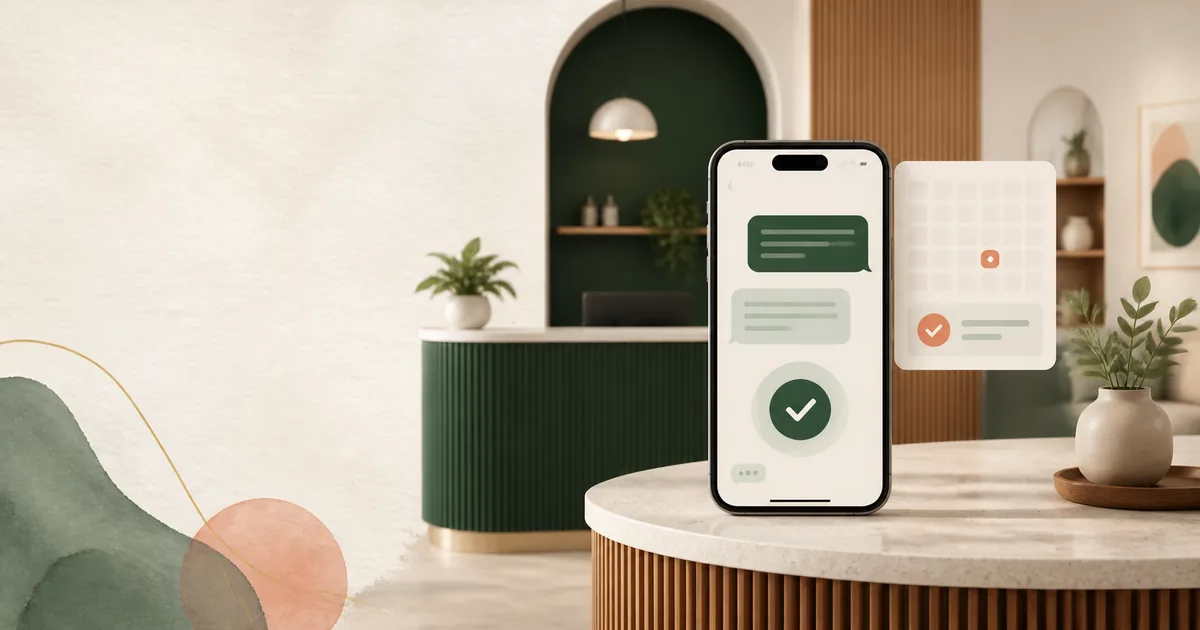
Acuity Scheduling sends its immediate booking confirmation by email, not by text message. To send an Acuity Scheduling confirmation SMS, keep Acuity as the booking source and add a transactional SMS workflow that triggers after a new appointment, respects consent, and lets the client confirm or manage the booking without calling your team.
Does Acuity Scheduling Send Confirmation Texts?
Native Acuity sends confirmation messages as emails when a client books. Its built-in client text message feature is for a single appointment reminder sent before the appointment, not an SMS confirmation sent immediately after checkout.
That distinction matters for studios, clinics, instructors, and other businesses that need a clear confirmation channel. An email can be missed in a crowded inbox, while a short transactional text puts the appointment details in front of the client at the moment the booking is created.
Acuity's official documentation also says that native text reminders are available on selected paid plans, one text is sent per appointment, and replies receive an automated message directing the client to contact the business another way. Native SMS is useful for a basic reminder, but it is not a two-way confirmation workflow.
How to Add an Acuity Scheduling Confirmation SMS
The cleanest setup has three parts: Acuity creates the appointment, an automation layer receives the booking event, and a compliant messaging service sends the confirmation text. Aculio connects these steps so the confirmation, reminder, and client reply stay tied to the same Acuity appointment.
- Connect Acuity Scheduling. Authorize Aculio and choose the calendars or appointment types that should use SMS automation.
- Capture a mobile number and consent. Make the phone field clear in your Acuity intake form and record permission before sending a transactional text.
- Choose a confirmation trigger. Use a new booking event so the message is created only after Acuity has accepted the appointment.
- Write a short confirmation template. Include the client's name, appointment type, date, time zone, and a way to manage the booking.
- Test the complete flow. Book a test appointment, check the message content and delivery log, then cancel and reschedule the appointment to confirm pending messages are handled correctly.
For a direct setup walkthrough, start with the Acuity SMS automation guide. Aculio can apply confirmation and reminder texts only to the appointment types you select, so a business can roll out the workflow gradually.
Native Acuity SMS vs. an Acuity Confirmation Workflow
| Capability | Native Acuity | Acuity + Aculio |
|---|---|---|
| Immediate booking confirmation by SMS | No, confirmation is sent by email | Yes, through a selected SMS workflow |
| Pre-appointment SMS reminder | One reminder per appointment on eligible plans | Booking confirmation plus scheduled reminders |
| Client replies | Automated response directs clients elsewhere | Replies are captured in a two-way inbox |
| Reply-aware follow-up | Not available | YES, CANCEL, and RUNNING LATE can be processed |
| Cancellation and reschedule handling | Manage through the native Acuity workflow | Pending automation can be updated or suppressed |
| Delivery history | Available in the appointment notification history | Centralized outbound and inbound message history |
What Should an Appointment Confirmation Text Say?
A confirmation SMS should answer the client's immediate questions without trying to reproduce the entire booking email. Keep the message operational and give one clear next action.
Example confirmation: Hi {{first_name}}, your {{appointment_type}} with {{business_name}} is booked for {{appointment_date}} at {{appointment_time}}. Reply YES to confirm or use {{booking_url}} to reschedule.
Useful confirmation messages usually include:
- Business name: identify the sender immediately.
- Appointment details: include the service, date, time, and time zone when clients may book from different locations.
- Location or meeting link: add the studio address, access instruction, or video link when it is essential to the visit.
- One action: ask for a confirmation reply or provide a rescheduling link, rather than listing several competing instructions.
- Opt-out language where required: make sure your program follows the rules for your destination and message type.
Do not put sensitive information into a routine text. Keep medical, payment, and private intake details in the secure booking system or client portal. SMS is best used for appointment logistics and a simple next step.
How to Keep Acuity Confirmation SMS Compliant
Appointment texts are still regulated business messages. Before enabling a confirmation workflow, document who consented, when consent was collected, what message types it covers, and how an opt-out is honored.
Acuity's own text-message guidance says clients must opt in to receive its reminders and can reply STOP to opt out. It also explains that a client can book without opting in, so consent should never be assumed just because a phone number exists in an appointment record. Review the Acuity text reminder documentation and the Twilio Messaging Policy before launching.
Build these checks into the workflow:
- Send only to contacts with an appropriate recorded consent status.
- Handle STOP and other supported opt-out keywords immediately.
- Do not send a reminder after a client has canceled or opted out.
- Keep the message transactional and relevant to the appointment.
- Use a recognizable sender and include a business contact route for questions.
- Review delivery and failure logs instead of assuming every message arrived.
Confirmation SMS, Reminders, and Replies in One Sequence
An SMS confirmation is most useful when it is the first step in a coordinated appointment sequence. Send the confirmation after booking, a reminder at the time that fits the appointment type, and a final short message only when it adds real value. If a client replies that they need to cancel or reschedule, the workflow should update the next step instead of sending a robotic reminder anyway.
For class-based businesses, that reply can also protect the next booking opportunity. A cancellation can open a seat for the Acuity group class waitlist, while the Acuity no-show prevention workflow keeps confirmed clients on track. This creates a closed loop from booking confirmation to attendance, cancellation, and backfill.
Comparing sender options? See our guide to Acuity Scheduling SMS integration with Twilio and webhooks.
Start Sending Better Acuity Confirmation Texts
Acuity Scheduling handles the booking and native email confirmation well, but an immediate SMS confirmation requires an additional messaging workflow. Aculio adds selected appointment confirmations, scheduled reminders, delivery tracking, and reply-aware handling on top of Acuity, so clients can act on the message and your team can see what happened.
Start a 14-day free trial, connect your Acuity account, and test the confirmation flow with one appointment type before expanding it across your calendar.